Emma Commands: Tasks, Notes and More with Slash Commands
Emma understands slash commands with /. Create tasks, log time, build checklists — all in one line. No explaining needed.
Why type a sentence when a shortcut will do
Emma understands full sentences. “Create a task: write the quote for project Weber” works just fine. But sometimes you just want to get something done quickly without explaining what you need. That’s what slash commands are for.
They all start with /. One word, done. Emma knows exactly what to do. There are ten of them right now.
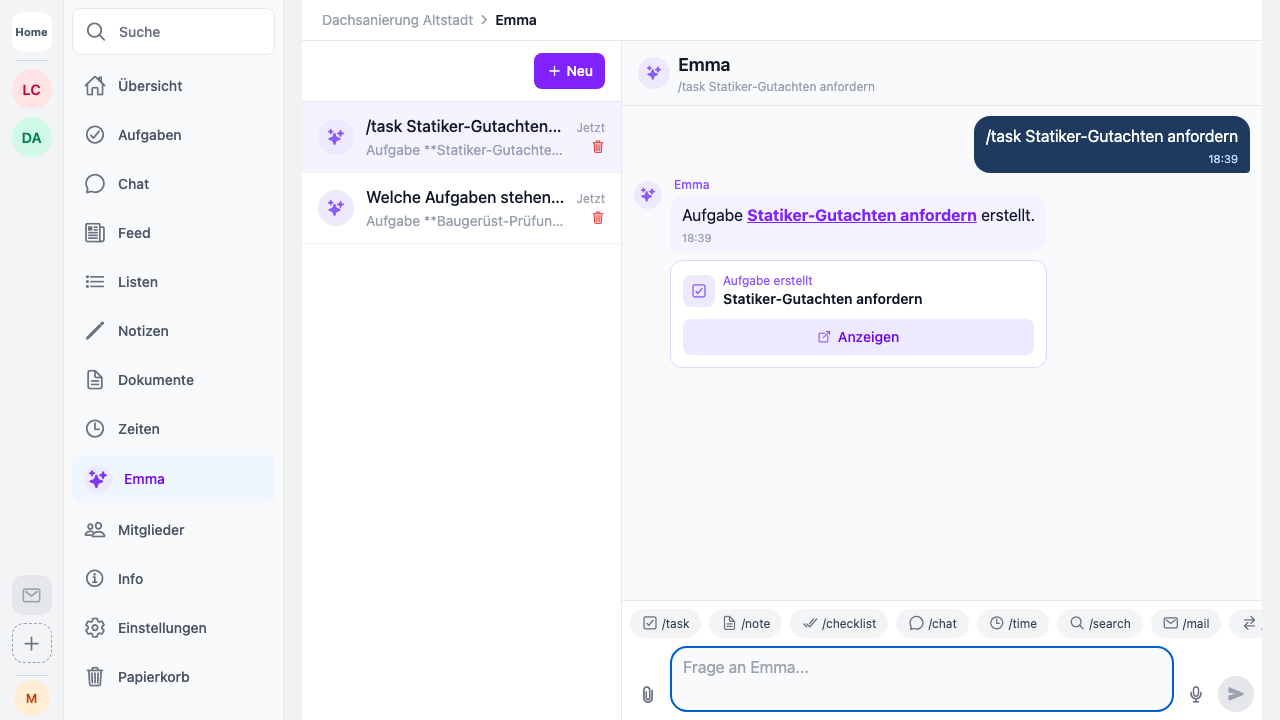
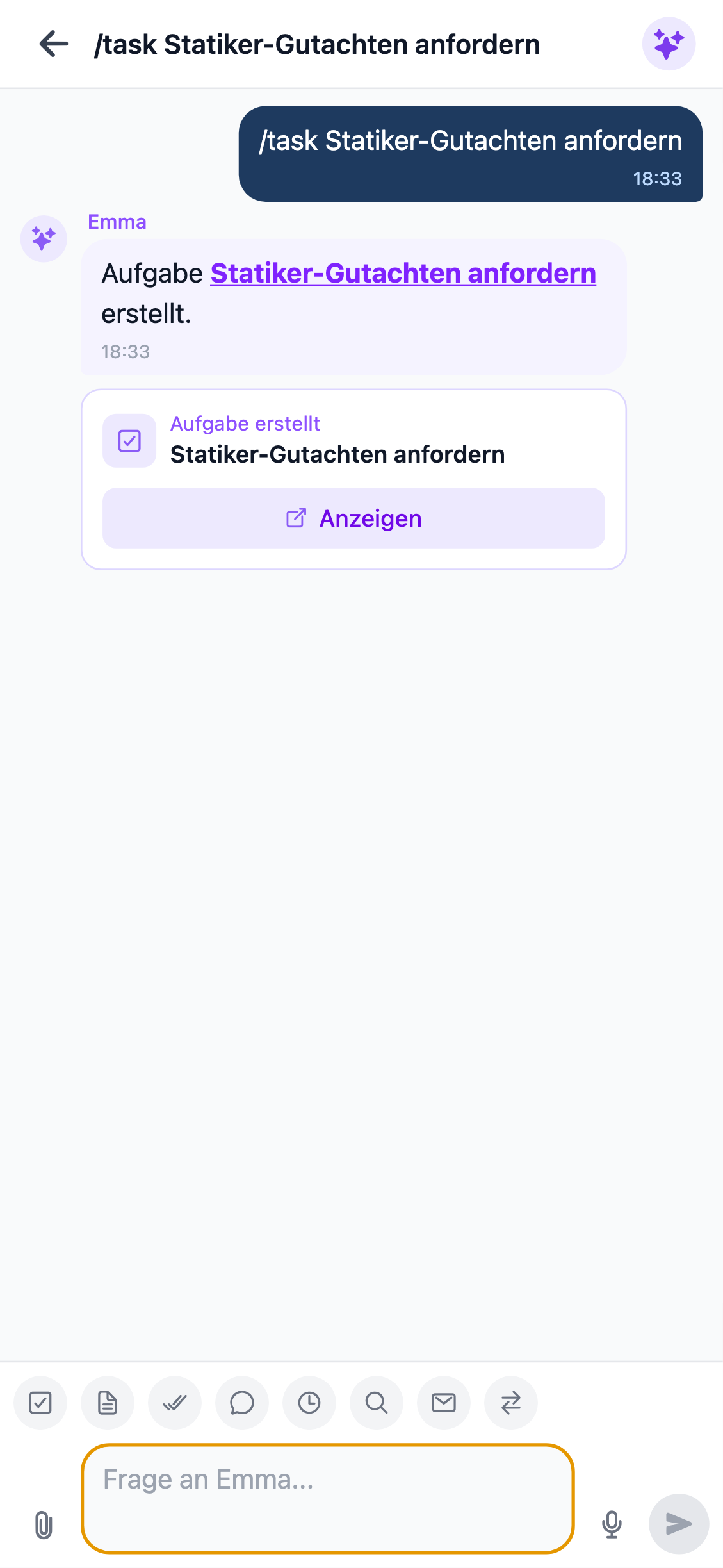
/task — create a task
The most common command. You type:
/task Write quote
Emma creates the task. No follow-up questions, no back and forth. If you need several at once, put each on a new line:
/task Write quote
Order material
Appointment with Mr. Meier
Emma creates all three at once. Up to 20 tasks in one go. Lines starting with - or * work too.
/note — create a note
/note Meeting | Mr. Meier wants changes to the draft
The part before the | is the title, everything after is the content. You can also use : as a separator:
/note Phone call: Mrs. Schmidt will call back Monday
If you just write text, Emma uses the first few words as the title.
Handy after phone calls or meetings when you want to jot something down before you forget.
/list — create a checklist
/list Tools | Drill, screws, anchors, level
Creates a checklist with four items. Separate items with commas or put each on its own line:
/list Site inspection
Power connected
Water running
Scaffolding up
Barriers in place
Up to 50 items per list. Good for packing lists, material lists or recurring workflows.
/chat — message your team
/chat I'll be there in 10 minutes
Sends the message straight to the project chat. Saves you the detour through the chat tab when you just want to give a quick heads-up.
More examples:
/chat Please bring all blueprints tomorrow
/chat Delivery coming between 2 and 3 pm
/time — log work time
/time today 07:00-15:30 break 30 Meier job site
Logs the work time directly. Emma understands “today”, “yesterday” or a date like 2026-03-15. Specify the break in minutes, description at the end.
More examples:
/time yesterday 08:00-17:00 break 45 Office work
/time 2026-04-02 06:30-14:00 break 30 Assembly project Weber
If you’re on the job site in the morning and want to log your hours in the evening: one line is all it takes.
/search — find something
/search quote
Searches tasks and notes in the current project. Best matches come first, up to ten results.
/search building permit
/search Mrs. Schmidt
If you know there was a quote somewhere but can’t remember where: /search finds it.
/mail — prepare an email
/mail Mr. Weber
Emma looks up the contact in your project contacts and prepares an email. You can include the subject right away:
/mail Mr. Weber Reschedule next week
/mail info@weber-bau.de Quote roof renovation
Without any details, Emma shows the available project contacts with email addresses so you can pick one.
/projects — view and switch projects
/projects
Lists all projects you’re a member of, along with your role in each. Handy when you’re jumping between projects and want to switch quickly.
/help — show all commands
/help
Shows all commands with examples. If you forget a command, type /help and Emma lists everything.
/intro — Emma introduces herself
/intro
Emma greets you by name and shows what she can do. Good for new team members using Emma for the first time.
All commands at a glance
| Command | What happens | Example |
|---|---|---|
/task | Create a task | /task Write quote |
/note | Create a note | /note Meeting | Changes to the draft |
/list | Create a checklist | /list Tools | Drill, screws, anchors |
/chat | Message your team | /chat Be there in 10 min |
/time | Log work time | /time today 08:00-16:30 break 30 |
/search | Search tasks & notes | /search building permit |
/mail | Prepare an email | /mail Mr. Weber Schedule change |
/projects | View & switch projects | /projects |
/help | Command overview | /help |
/intro | Emma introduces herself | /intro |
Do I need to memorize all of this?
No. The commands are there if you want them, not required. Emma still understands normal sentences like “Please create a task” or “Write a note about the meeting”. Slash commands are for people who are in a hurry and know what they want. Instead of forming a sentence, one line is enough.
And if you forget a command: /help. It’s all in there.