Task Update: Priorities, Kanban and Gantt
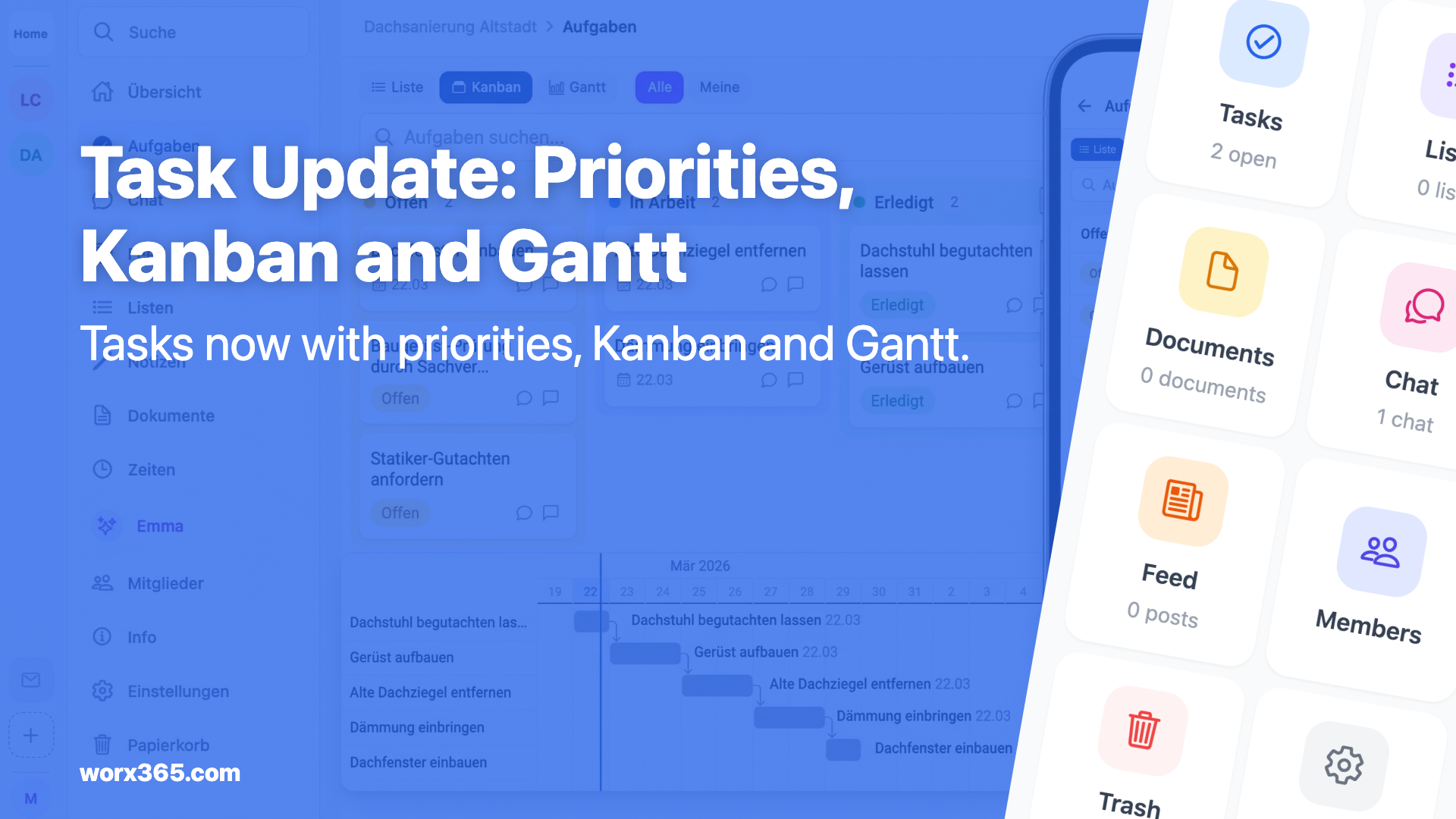
Worx365 Tasks now with 6 priority levels, color-coded labels, Kanban board and Gantt chart. Stay on top of things on the job site and in the office.
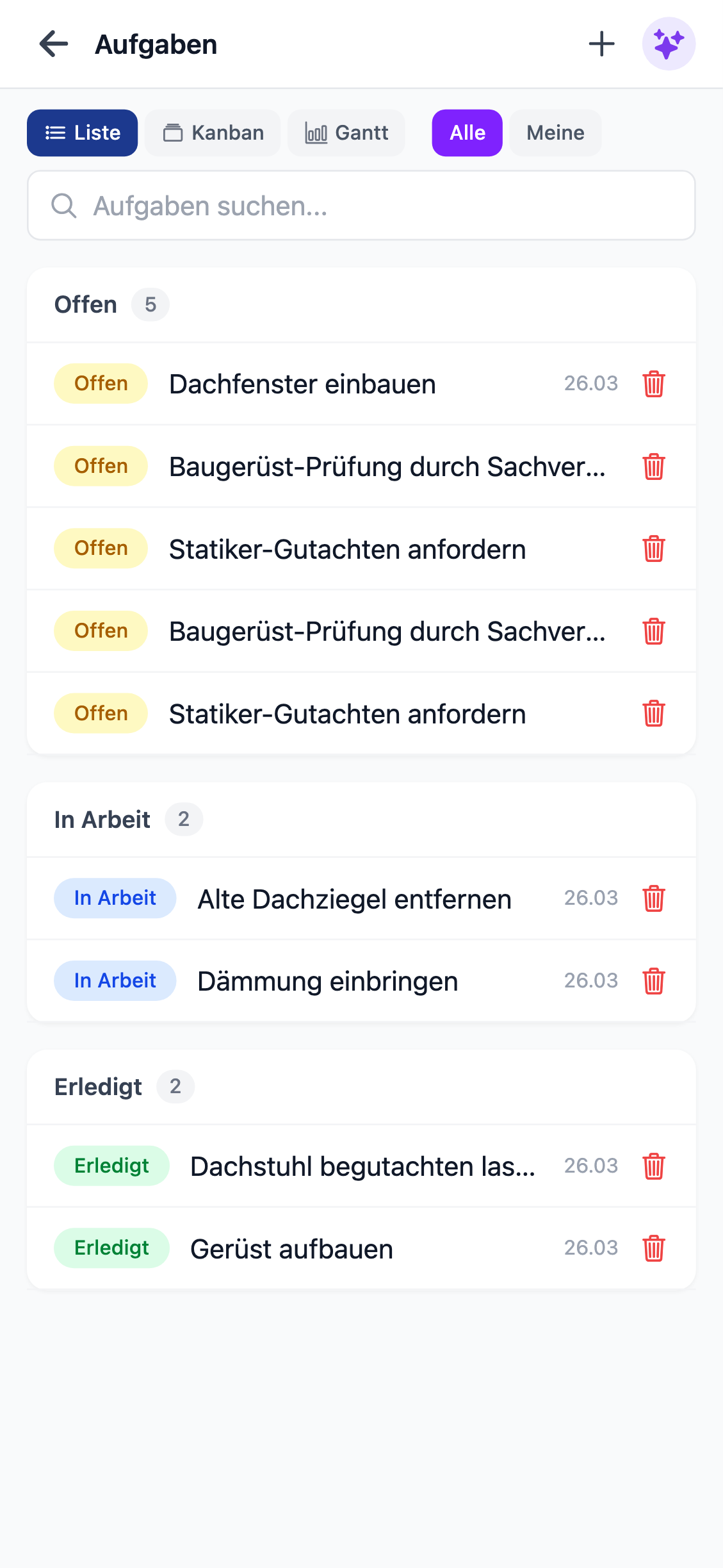
Five open tasks, none of them clearly prioritized
You have twenty tasks in a project. Three need to go out today, five are due sometime next week, and the rest? No idea. Your team asks: “What should I do next?” You look at the list, think for a moment, and go with your gut on what’s most urgent.
That’s how it works in many small teams. Tasks get created, but the structure is missing. What’s actually urgent? Which tasks belong together? How far along is the project overall?
That’s exactly what we changed.
What’s new
Our task management got a major update. Three things are new: priorities, labels and three different views for your tasks.
Six priority levels instead of gut feeling
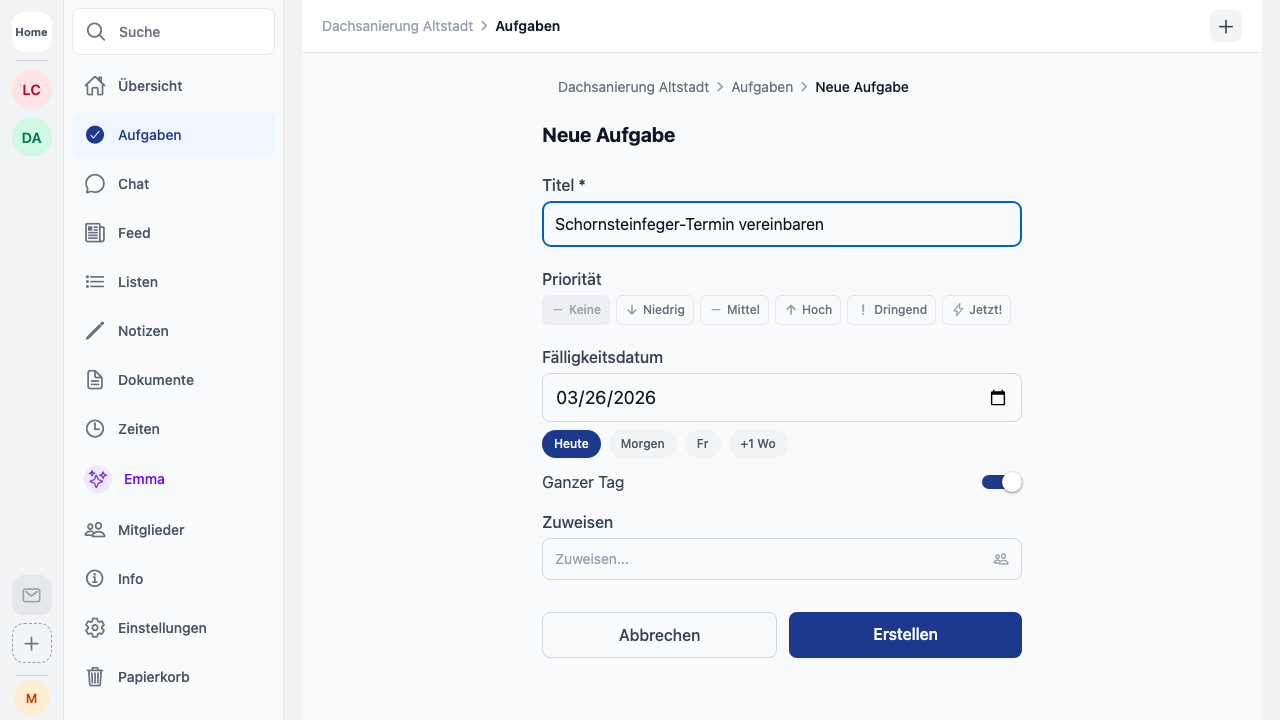
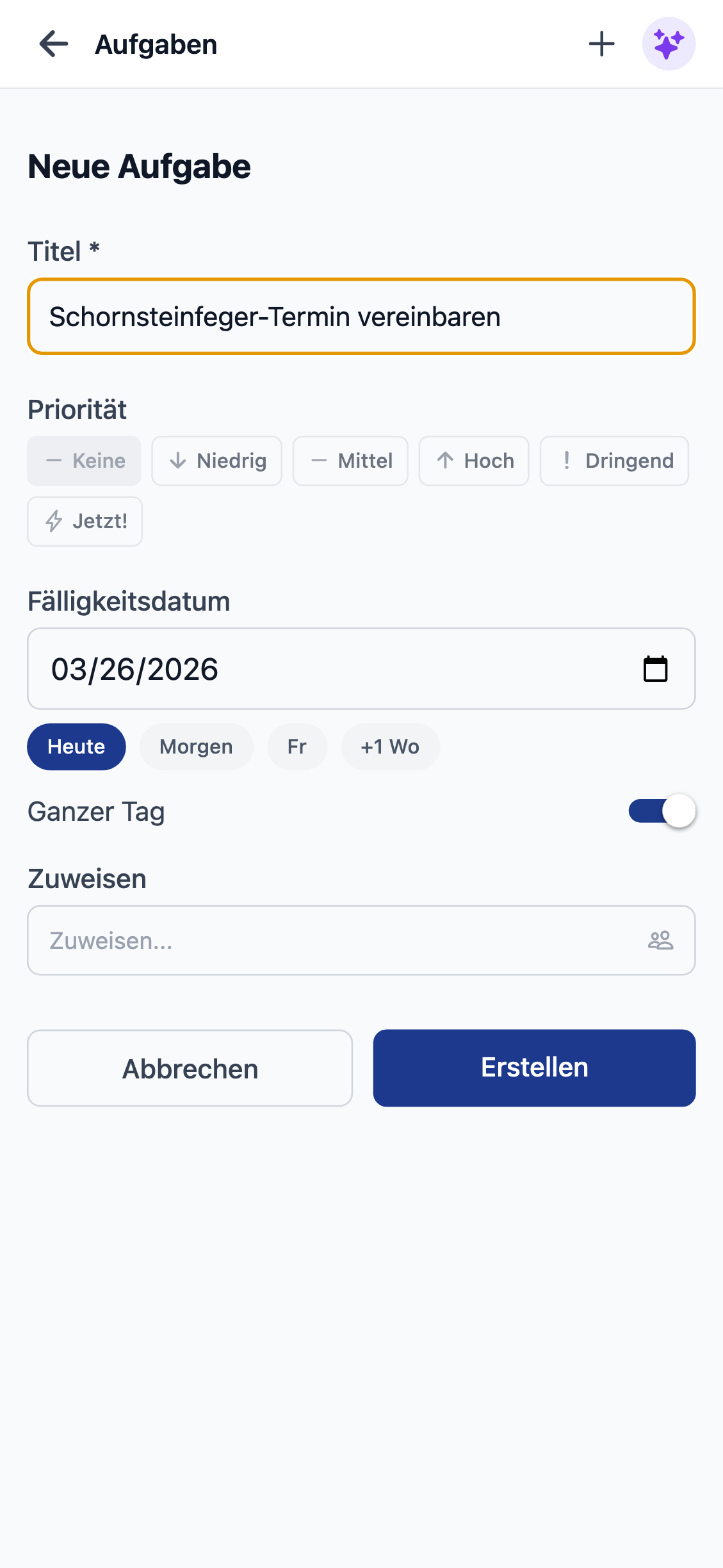
Every task now gets a clear priority. Not just “important” or “not important” — six levels:
- None — task with no particular urgency
- Low — can wait, but don’t forget it
- Medium — normal priority, get it done soon
- High — should be done before long
- Urgent — needs to be done today or tomorrow
- Now! — immediately, everything else waits
The levels are color-coded: from gray through blue and yellow to red. You see at a glance what’s on fire and what can wait. And so does your team.
Labels: organize tasks by topic
Sometimes status and priority aren’t enough. You want to know: which tasks are about electrical work? Which ones belong to construction phase 1? Which are material orders?
That’s what labels are for. Each project has its own labels with custom colors and names. You create them in the project settings and assign them to tasks. Multiple labels per task are supported.
Labels show up as colored chips on the task cards. You can immediately see what topic a task belongs to, no matter which view you’re in.
Three views, one data set
Different situations need different perspectives. That’s why there are now three views for your tasks. All of them show the same data, just presented differently.
List
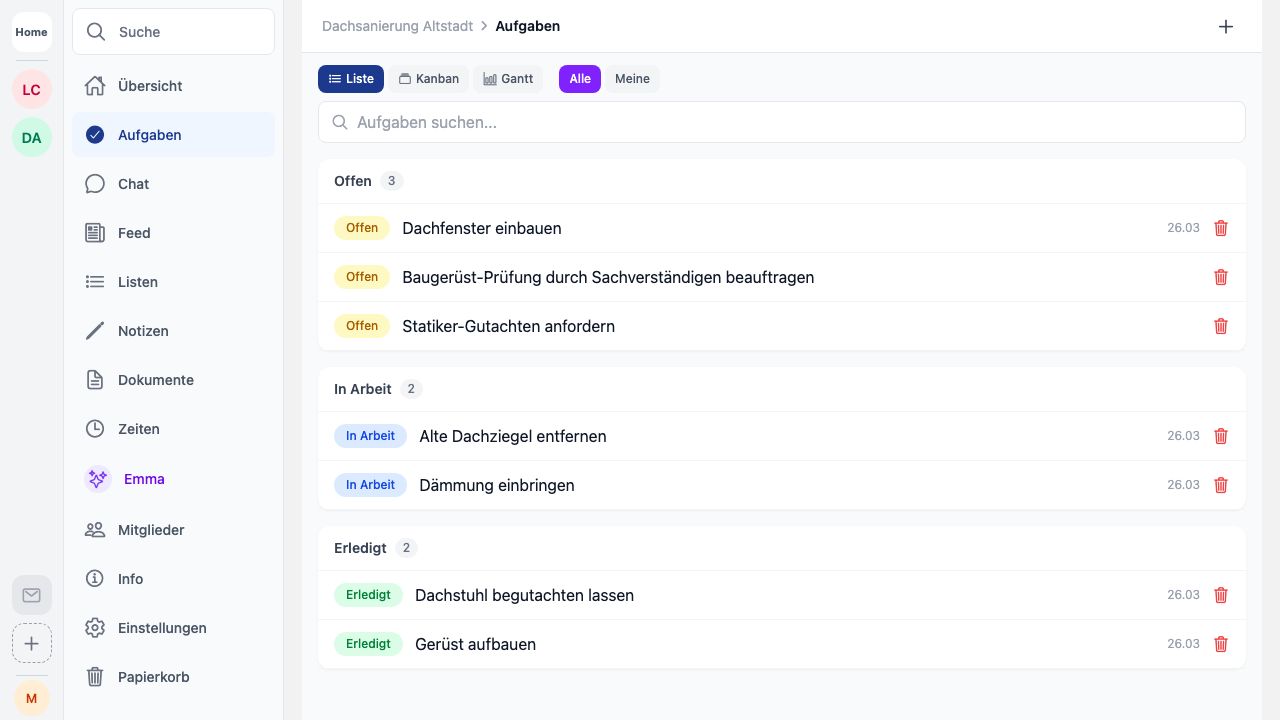
The classic view you already know. All tasks in a vertical list with status, priority, labels and due date. Fast, clear and ideal for your daily check.
Kanban board
Three columns: Open, In Progress and Done. Click to move tasks from one column to the next. Each card shows the title, priority, assigned people, labels and due date.
The Kanban board works especially well when you want to visualize your team’s workflow. You can see at a glance what’s being worked on, what’s still open and what’s been completed.
Gantt chart
The timeline shows you which tasks run when. Each task is displayed as a bar from start date to end date. The bars are color-coded by priority, and a red line marks today’s date.
Especially useful: the “Show tasks without date” toggle. Tasks that don’t have a start or end date yet are automatically shown at today’s date. So you won’t forget a task just because it hasn’t been scheduled yet.
Real-world example: landscaping team with five people
Marco runs a landscaping team and manages two projects at the same time. Until now, he had a long list of tasks sorted only by status. Only he knew what was urgent.
Now he uses priorities and labels:
- Label “Planting” for everything related to plants
- Label “Earthwork” for excavation and digging
- Label “Material” for orders and deliveries
- Priority “Urgent” for tasks that need to be done before the weekend
In the Kanban board, his team sees every morning which tasks are open and what’s currently being worked on. In the Gantt chart, Marco plans the coming weeks and spots bottlenecks before they happen. And when the client calls asking about the schedule, he shows them the timeline.
Real-world example: planning office with three partners
Thomas runs a small planning office. Three partners, different projects, lots of deadlines. Until now, everyone kept their tasks in their head. That works until it doesn’t.
Now he relies on the list view, sorted by due date. The whole team sees at a glance what’s coming up this week. He uses labels for project phases:
- “Draft” — conceptual work
- “Approval” — permits and government paperwork
- “Execution” — construction supervision
When Thomas needs an overview of all projects, he switches to the Gantt chart and sees the timelines for all tasks. Overlaps and bottlenecks stand out immediately.
Real-world example: trades business with changing orders
Laura runs a trades business with eight employees. New orders come in every day, others get finished. The challenge: don’t forget anything, spot urgent items right away, keep the overview.
She uses the Kanban board as her main view. New orders land in “Open”, ongoing work in “In Progress” and completed jobs in “Done”. Priorities help her set the order:
- A burst water pipe? Priority “Now!” — the team sees immediately what takes precedence.
- A planned renovation next week? Priority “Medium” — important, but not today.
- Writing a quote for a new customer? Priority “High” — should go out soon.
In the evening, she checks the list view, sorted by priority. That way she makes sure nothing urgent slipped through the cracks.
Notifications keep you in the loop
When something changes on a task, you’ll know right away. Worx365 notifies you automatically when:
- someone assigns a task to you
- the status of one of your tasks changes
- a task’s priority gets changed
- a task’s due date is moved
No need to keep checking. The important changes come to you.
Just pick the view that fits the moment
You don’t have to commit to one view. Switch between list, Kanban and Gantt any time. Plan the day in the Kanban board in the morning, check priorities in the list at noon and review next week in the Gantt chart on Friday.
All views show the same tasks. Changes in one view are instantly visible in all others.
Want to organize your tasks better? Sign up and try Worx365 with your team.